Build your own private network with Flashlink.
Connect computers and servers across locations through a private network with European VPN and relay infrastructure and a Swedish operator. This guide explains the devices, account and access model, with a practical example you can adapt to your own setup.
By Flashlink AB · Published 27 October 2026
Start with the devices you want to connect.
A small business may need its work computer to reach a server in another location. An IT consultant may need a consistent way to administer machines they are authorised to access. The starting point is a private connection between those devices.
Flashlink enrols your devices in an account and connects them through its private networking platform. VPN and relay infrastructure is hosted in Europe, and Flashlink AB develops and operates the platform from Sweden. WireGuard encrypts the tunnel transport.
Remote desktop, SSH and shared sessions are ways to use that network. You can choose the workflow that fits the device and the work you need to do.
What does European control mean here?
For Flashlink, the concrete foundation is a Swedish developer and operator with European-hosted VPN and relay infrastructure. You can identify the company responsible for the networking platform and review how the service is run.
When choosing a network service, look separately at the operator, hosting locations, account services and external providers. Our security policy describes the core infrastructure and dependencies; our privacy policy explains data handling. Those details help you assess your own requirements.
Use our European network control checklist to compare those questions with Flashlink's documented setup before running a pilot.
A practical example: one work computer and two servers.
Suppose you want to work from a laptop and reach two machines in other locations. The following is an example configuration, rather than a report of a customer deployment.
| Device | Flashlink role | Peers used |
|---|---|---|
| Your work computer | Master | 1 |
| First remote server | Node | 1 |
| Second remote server | Node | 1 |
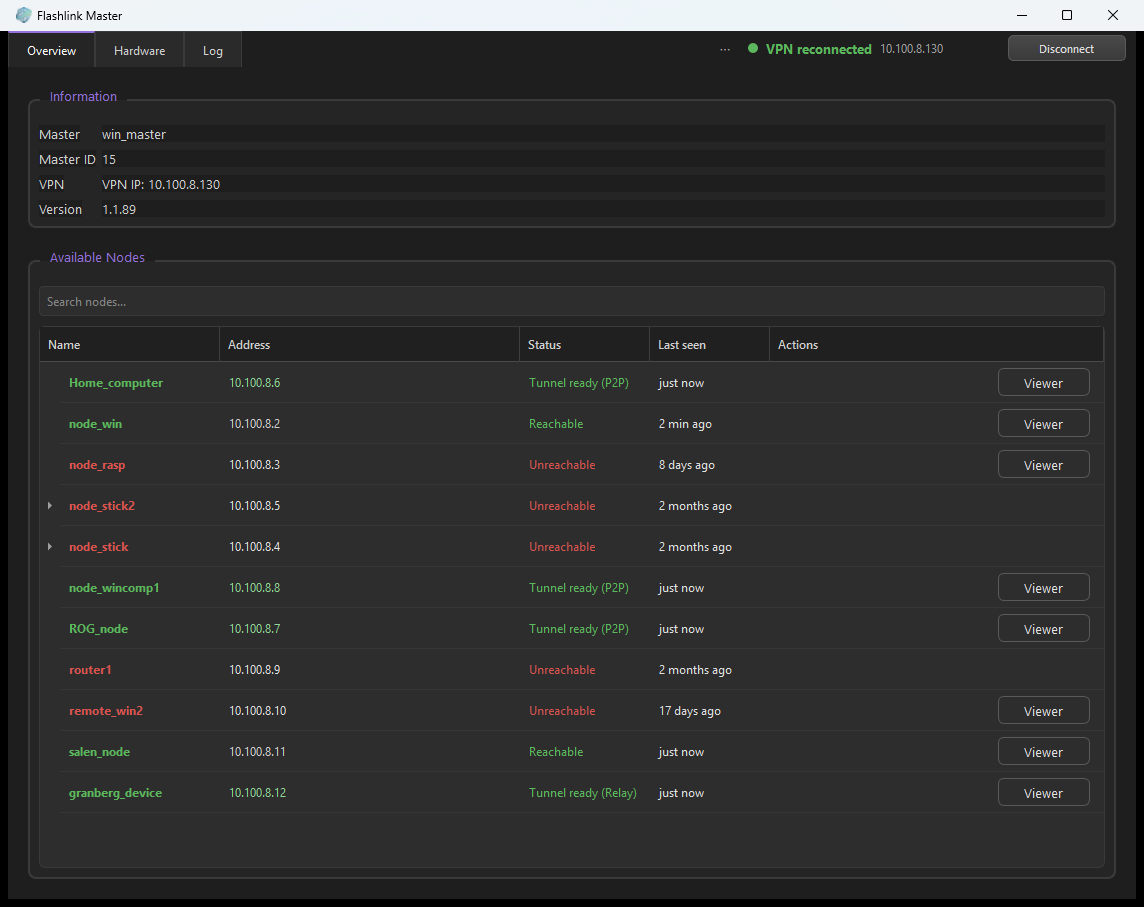
This setup uses three peers from the same account allowance. A Master is the computer you connect from; a Node is a device you want to reach. Both roles count towards the five free peers.
Desktop software is available for Windows and Linux. Check the installation options for the actual systems you plan to use. You need permission to administer each device, internet access and installation rights. The service is currently available to customers in the EU.
How to set up the private connections.
- Create your account. Open the dashboard, sign up or sign in, and complete any requested email verification.
- Add the devices as peers. Create a Master for the computer you work from and a Node for each remote machine. Use names that make the devices easy to identify.
- Install the matching software. Use the Windows MSI and activation code or the Linux installation command provided for each peer. Complete installation on the intended device and keep activation information private.
- Bring the devices online. Keep Node running on each remote machine and open Master on your work computer. Confirm that the intended Node is available before trying to access it.
- Verify the work you need to do. Open a desktop or, on a supported Node installation, an SSH terminal. Then test reconnecting after a device restart and from the networks you expect to use.
The account and peer setup establish your Flashlink private networking workflow. Use the existing installation guide for the role and activation steps. Application availability also depends on the device, permissions, host firewall and service configuration.
Use the network for your own workflows.
Once connected, you can use a remote desktop for graphical work or SSH on supported installations for command-line administration. Shared sessions allow connected viewers to follow the same desktop while one controller handles input and viewers can request control.
These are useful tools for working with the devices in your network. You can start with the particular connection you need and add peers as the setup grows. See shared sessions for the controller and viewer model.
Understand the free allowance and ongoing cost.
The first five active peers per account are free without a payment card. Masters and Nodes count together, so the example above uses three of the five free slots. Each additional active peer costs €1 per month including applicable VAT.
An allocated active peer still counts while its device is offline, until it is deleted or deactivated. Additional peers start billing on the first of the next month. Review pricing and the service terms before expanding your deployment.
What should you check before a larger rollout?
Start with a small set of devices you control. Confirm the operating systems, installation permissions, account ownership, connection workflow and reconnection behaviour. For client work, agree who may access each device and how that access will be removed when an assignment ends.
Review the operator and supplier information alongside the practical connection test. If you need to discuss a particular device arrangement or rollout, use the contact page and describe the intended setup.